A graphical interface for Claude Code
Claude Code is one of the strongest coding agents, but it lives in a terminal. VibeCoder runs the very same CLI and gives it a proper window: a chat, buttons, voice and everything you need right next to it.
What changes compared to the terminal
- Projects and chats as tabs. Several folders open at once, each with its own chats, agents working in parallel.
- Permissions as buttons. When Claude Code asks whether it may run a command or edit a file, the chat shows an “Allow / Deny / Always” banner. For a sandbox there is an “allow everything” mode — per chat.
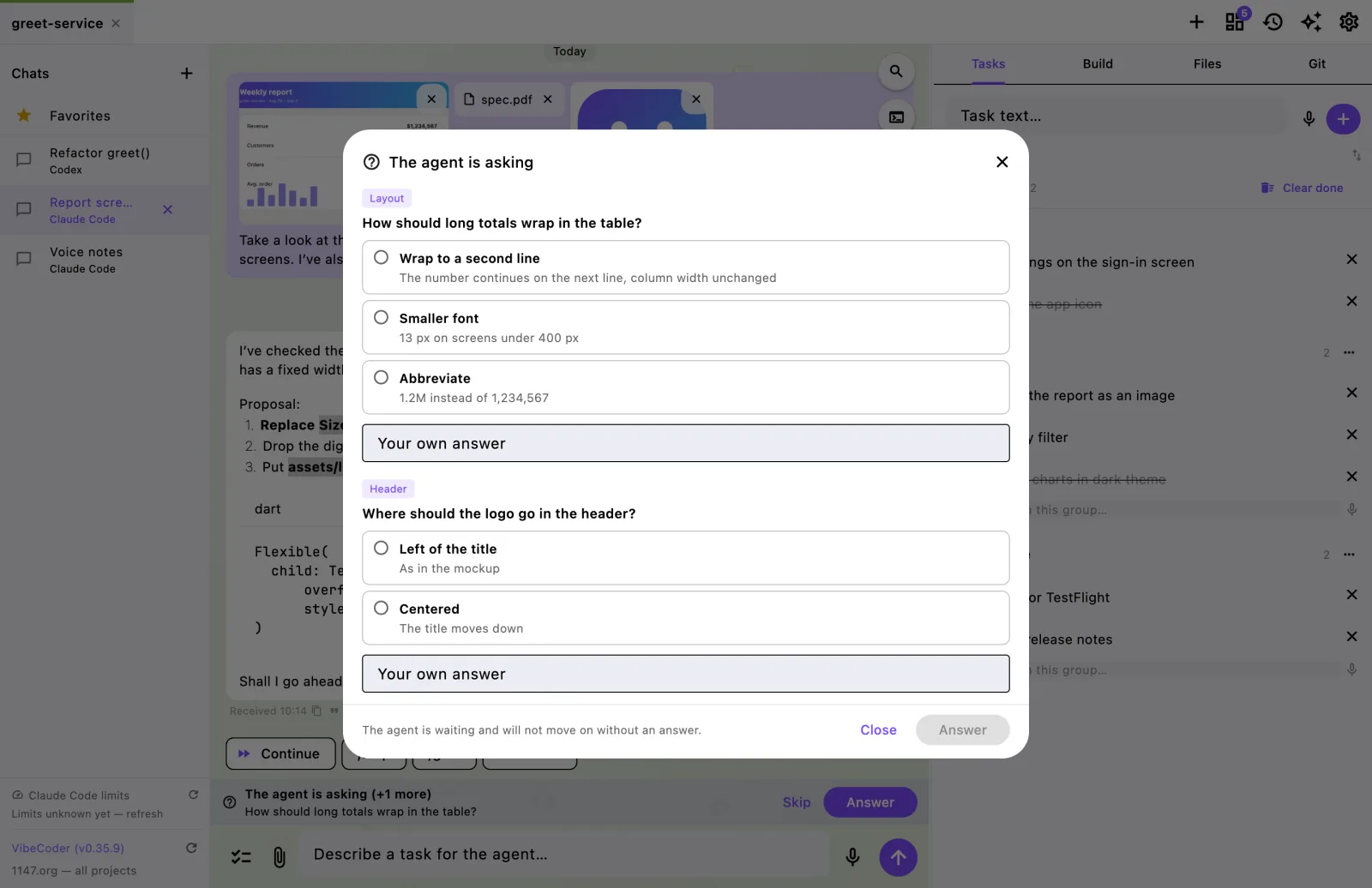
- Agent questions as choices. When Claude Code offers options, they arrive as buttons instead of text you have to retype.
- Voice. Dictate a task: speech-to-text runs through whisper on your own computer, audio never goes to the cloud.
- Attachments. Drag screenshots, PDFs and any files into the chat — the agent gets them with the message.
- Model and effort per chat. Opus, Sonnet, Haiku — and effort from low to max, as two lists side by side.
- Pause and auto-continue. Pause the agent between actions, and when the session limit runs out the app resumes the work by itself after the reset.
- Limits in sight. Session and weekly usage as bars with the reset time.
It is the same Claude Code
VibeCoder replaces nothing: it runs your installed claude with your own subscription or API key. Conversations continue via --resume, project settings in .claude/ work as usual, and skills can be installed from the built-in store.
So whatever Claude Code can do in a terminal, it can do here — only the way you talk to it changes.
What else sits next to the chat
- tasks — collect them while the agent is busy and send them as a list;
- a mini IDE — file tree and viewer for code, PDFs and images;
- git — live changes, commit, push and commit history with diffs;
- favourites, search across conversations and export of history to PDF;
- a phone companion — check on progress and send a task from your phone.
Getting started
- Download VibeCoder for your system.
- If Claude Code is not installed yet, open “Settings → Doctor”: the app installs it via npm.
- Log in: Doctor opens a console with
claude auth login. - Open a project folder and write your first task.